
Welcome and Login
At the User login window, enter a valid username and password, as supplied by your service provider and click the "Log in" button:

Selecting "Auto login" will skip the user login page on subsequent start up of the Blink Voice CRM Integrator software client.
Select "Advanced" for more connection options
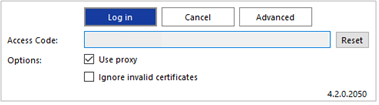
Advanced Options
Access Code Reset
To modify the Access Code, click "Reset" and enter the new Access Code.

NOTE: This should only be performed on the guidance of your service provider.
Options
Select "Use proxy" and "Ignore invalid certificates" only if required and instructed to by your service provider:

First Login Wizard
At the first login after installation, a list of the available telephony devices for your user account will be displayed. Tick the box to enable the device to be available for use. At least one device must be selected and if multiple devices are enabled, the Preferred device can be chosen from the drop down list.
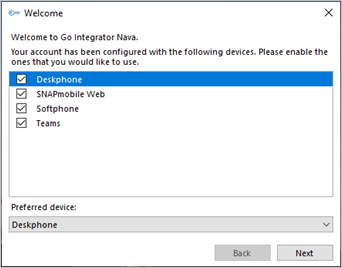
The selection can be amended after login through Configuration > Devices.
NOTE: The "Primary/Deskphone" device must be selected for Contacts to be displayed or searched in the Presence window. The "Softphone" device must be selected for Presence to display Busy Lamp status regardless of whether the Softphone is used or available as a Preferred Device.
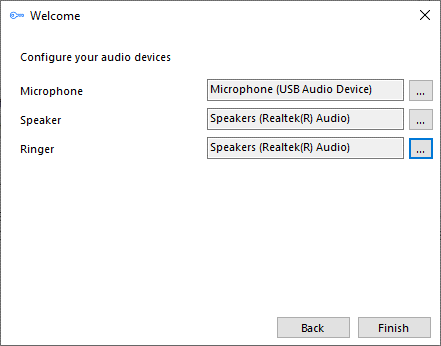
The "Softphone" device will also prompt for PC audio device configuration settings – choose the appropriate audio devices for microphone, speaker and ringer.
If "Teams" is selected, the Microsoft Teams user account will request login confirmation:
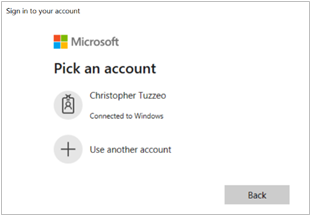
NOTE: additional configuration is required within Microsoft Teams administration
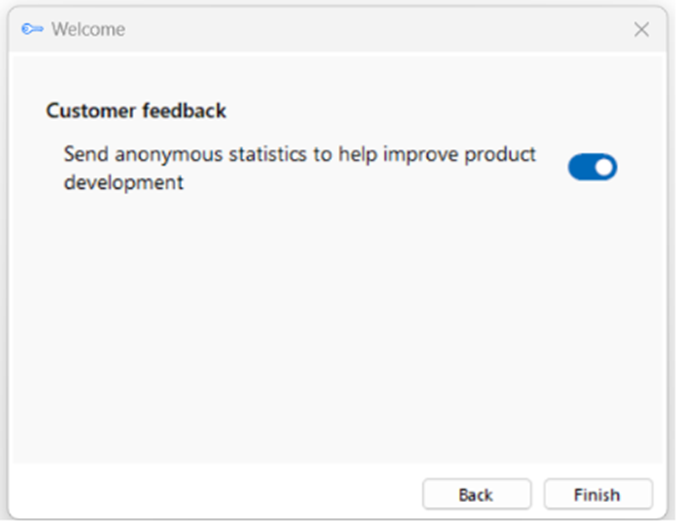
Customer Feedback
(Added in release version 4.3.5)
Send data into the software development team to help improve the product evolution.
License Key Activation
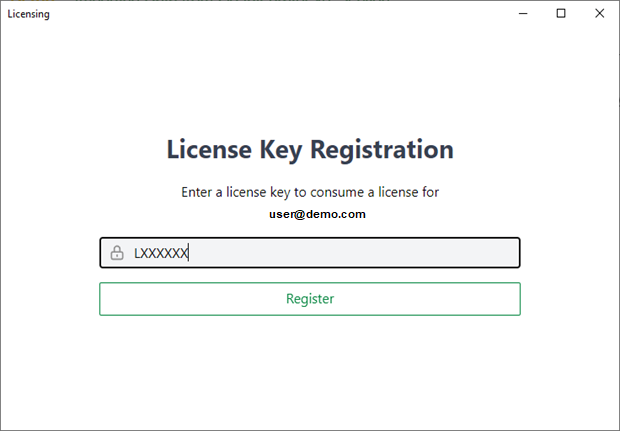
If a User is not already assigned with a Blink Voice CRM Integrator user license, an additional "Licensing" window is displayed. This allows new users to enter a License Key (previously referred to as Serial Number) to self-assign a License Pack, or to register for a free 30-day trial.
A registration screen appears following the user login window to input the License key allocated by the service provider.
Register for Trial
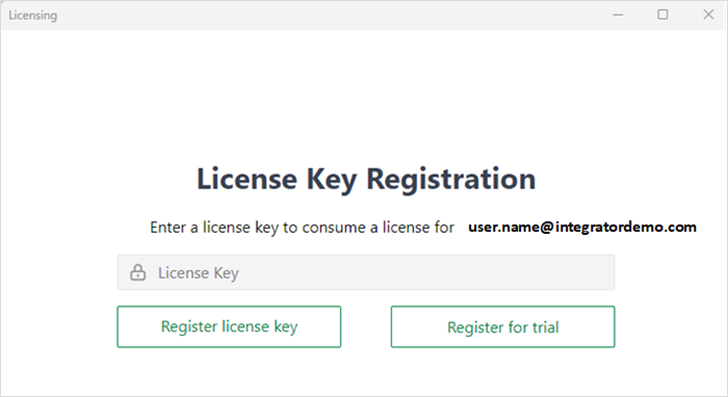
If a user has a username, password and access code, but does not have a Blink Voice CRM Integrator license key assigned to them, then they have the option to activate a time limited trial. This can be done by clicking Register for Trial.
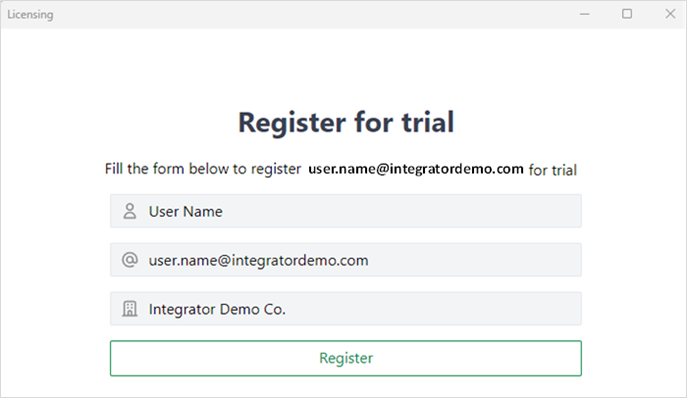
A screen will appear where the user will enter their name, email and company name.
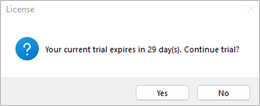
Throughout the trial, the user will receive notification of how long they have left. The user can continue the trial or cancel at this point.
Once the trial is completed, the user will need to speak to their provider to obtain a license. This can also be done during the trial period.
 Report this page