
Microsoft Teams Integration
Zu den mit Microsoft Teams verfügbaren Integrationsfunktionen gehören:
- Adapter für Teams Suchen und Anrufen
- CRM-Kontakt anzeigen, hinzufügen, einblenden für eingehende Anrufe
- Teams als bevorzugtes Wählgerät
- Öffnen Sie Microsoft Teams Chat aus dem Präsenzfenster
- Teams-Avatarbild im Präsenzfenster anzeigen
- Anzeigen des Teams-Verfügbarkeitsstatus von Mitarbeitern Präsenzfenster
- Veröffentlichen des Status "In einem Anruf" in Microsoft Teams
Suche und Anruf (Teams Adaptor-App)
The Search and Call app for Microsoft Teams can be installed and used by any Blink Voice CRM Integrator user.
Once installed, the Search and Call app will offer the Blink Voice CRM Integrator Address Book search functionality from within Teams, and allow users to click to dial from within Teams.
NOTE: The Blink Voice CRM Integrator software must be active and connected to use the Teams Search and Call app.
Geben Sie einen zu findenden Kontaktnamen ein und klicken Sie auf „Suchen“

Passende Einträge werden im Benutzerverzeichnis der Telefonanlage und im integrierten Adressbuch gefunden:
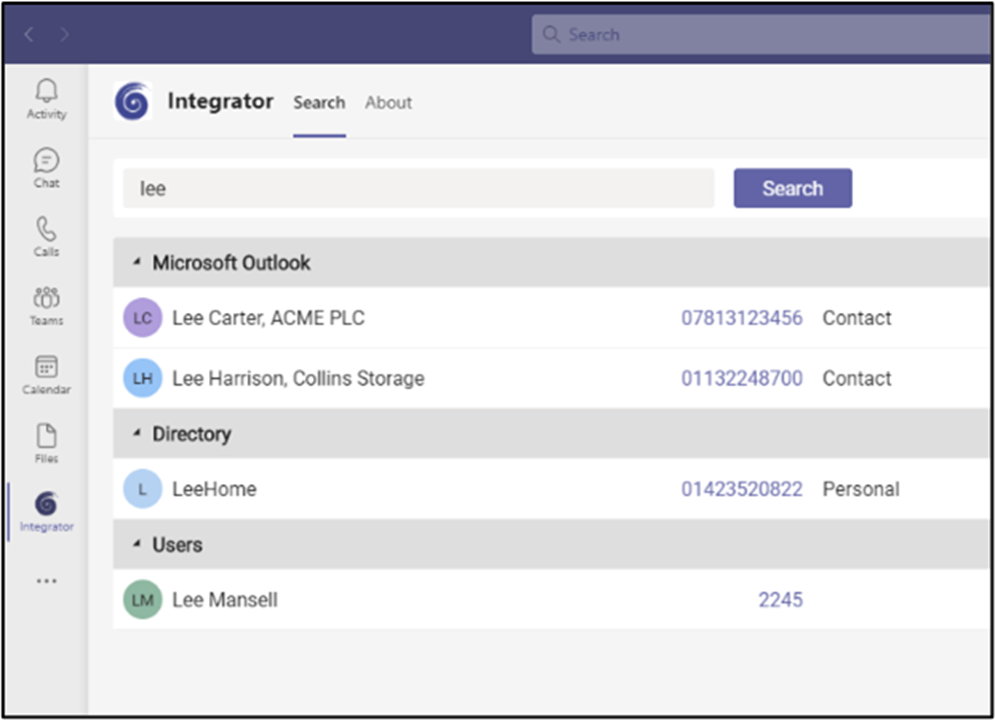
Klicken Sie auf die Nummer, um sie zu wählen.
CRM-Kontakt anzeigen, hinzufügen, einblenden für eingehende Anrufe
When the Microsoft Teams user receives an incoming call via their Telephone system direct routing service, Blink Voice CRM Integrator users can view contact information for any matching entries from any integrated address books. Diese Kontaktinformationen befinden sich entweder im Vorschaufenster oder im Benachrichtigungsfenster der Anrufsymbolleiste.
Teams als bevorzugtes Wählgerät
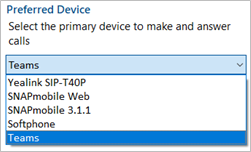
When the Telephone system user has a direct routing service available for Microsoft Teams, Blink Voice CRM Integrator TEAM and UNITE users can select "Teams" as their Preferred Device, used to make and receive calls.
Im Taskleistenmodus bietet das Symbol „Bevorzugtes Gerät“ eine Dropdown-Menüauswahl mit den verfügbaren Geräten.
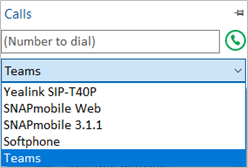
Im App-Leiste Modus wird das Dropdown-Menü „Bevorzugtes Gerät“ im Fenster „Anrufe“ angezeigt.
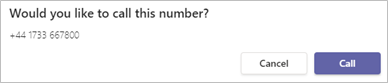
Outgoing calls initiated from Blink Voice CRM Integrator will be passed to the Teams client which will prompt the user to begin the outgoing call:
NOTE: Incoming calls to the Teams client cannot be answered by Blink Voice CRM Integrator - use the Teams incoming call notification to answer calls.
Öffnen Sie Microsoft Teams Chat aus dem Präsenzfenster
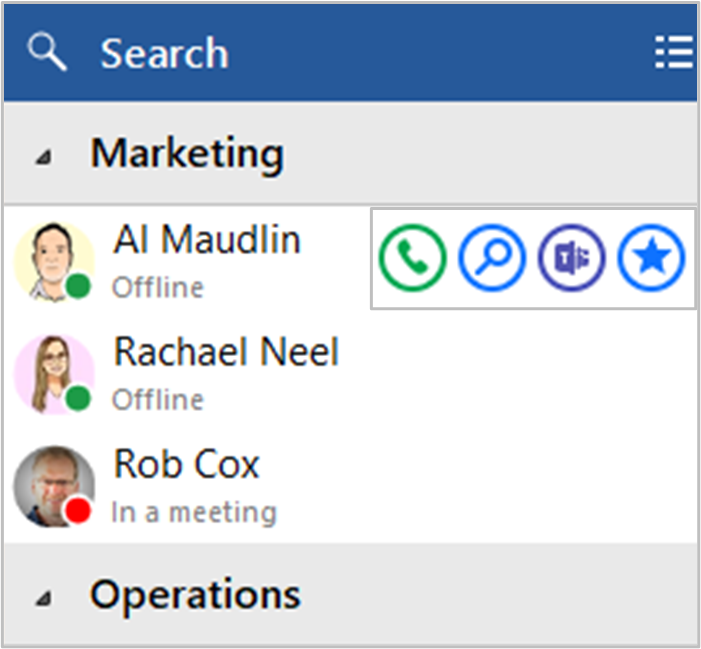
Blink Voice CRM Integrator TEAM and UNITE users can open a Teams chat conversation from within the Blink Voice CRM Integrator Presence window, using the slide out menu that appears when hovering over a contact icon.
(das Gespräch findet innerhalb von Microsoft Teams statt)
Teams-Avatarbild im Präsenzfenster anzeigen
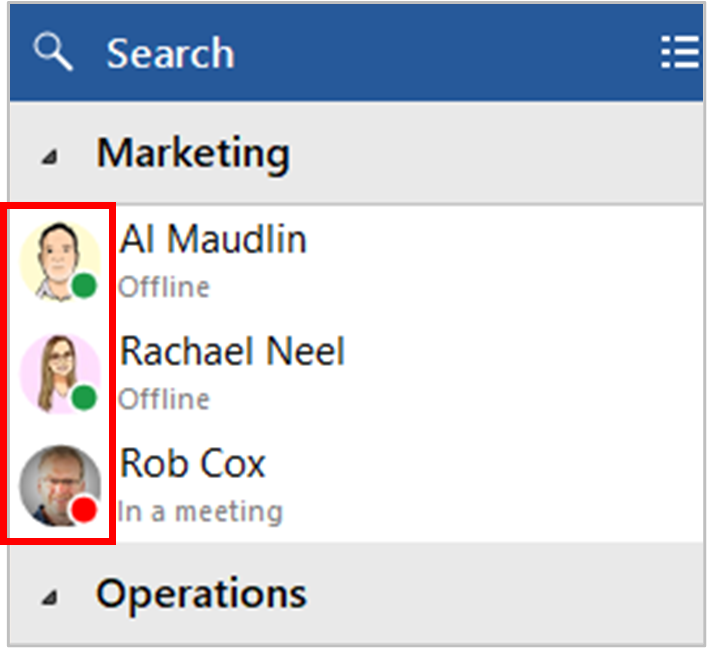
For Blink Voice CRM Integrator TEAM and UNITE users, co-worker avatar images are displayed against each User's contact icon within the Blink Voice CRM Integrator Presence window.
Anzeigen des Teams-Verfügbarkeitsstatus von Mitarbeitern Präsenzfenster
Präsenz mit Teams-Verfügbarkeit
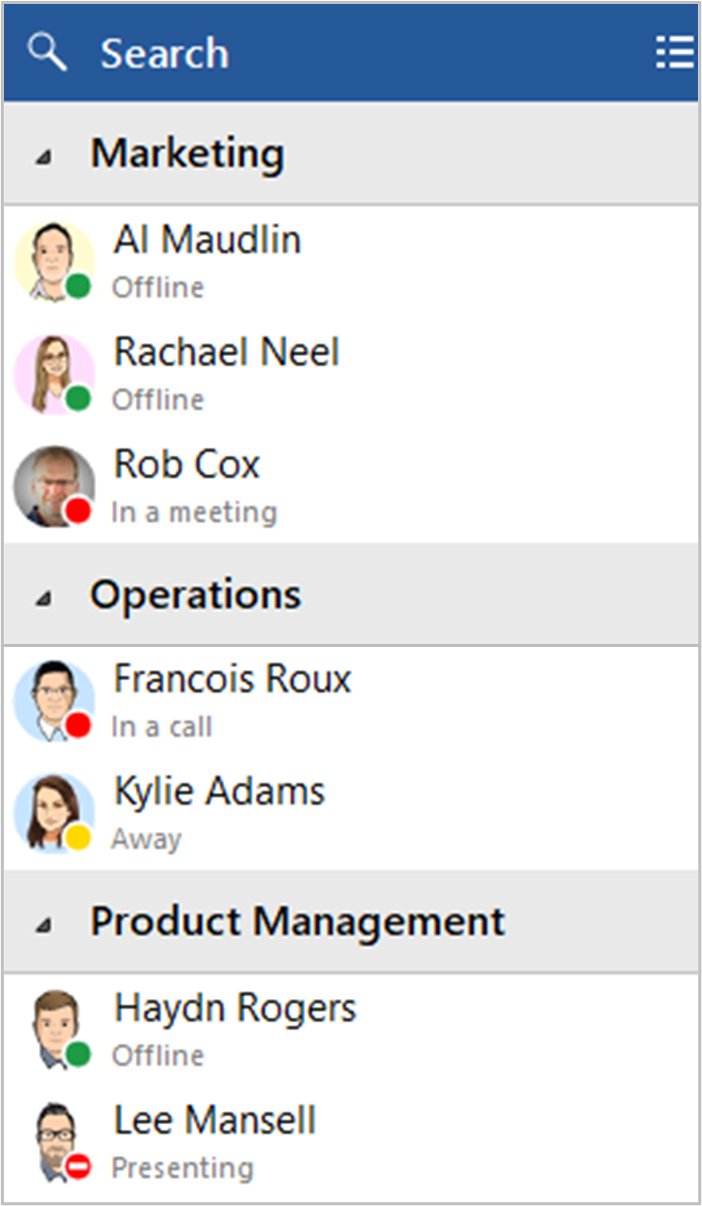
For Blink Voice CRM Integrator TEAM and UNITE users, co-worker availability is displayed as a combination of Telephone system extension status and Microsoft Teams user Availability status, indicated by a mixture of icon color and status text:
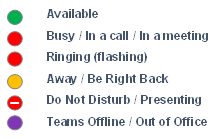
NOTE: An active call via the Telephone system extension will take precedence over Teams Availability status
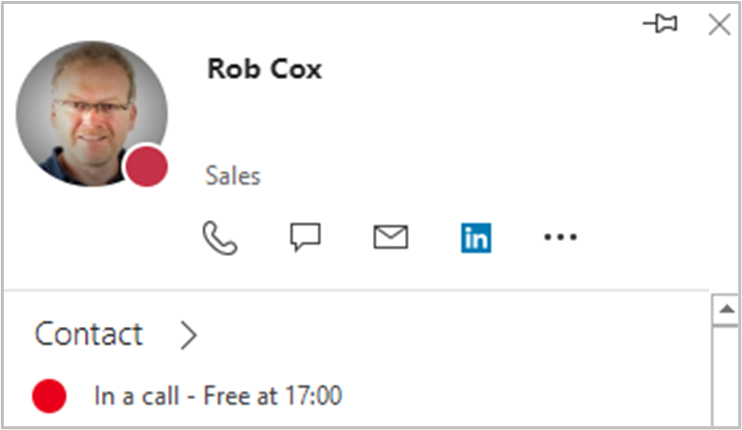
Veröffentlichen des Status "In einem Anruf" in Microsoft Teams
Mit dieser Funktion kann Blink Voice CRM Integrator den Teams -Verfügbarkeitsstatus auf „In einem Anruf“ ändern, wenn der Benutzer über die Telefonanlage aktiv telefoniert.
Status „In einem Anruf“ innerhalb von Microsoft Teams

Status „In einem Anruf“ innerhalb von Microsoft Outlook
 Report this page