
Using Search and Call for Microsoft Teams
Blink Voice CRM Integrator client should be installed and running for Search and Call for Microsoft Teams to work.
Searching for Contacts
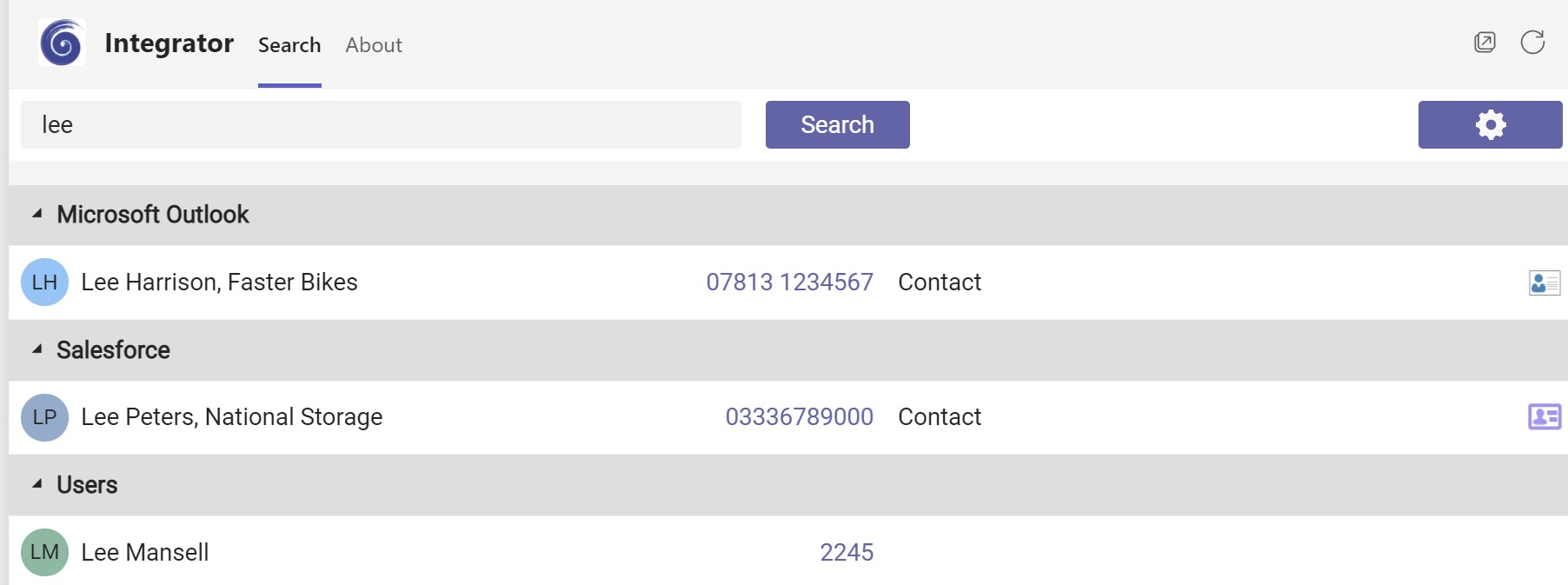
- To access Search and Call for Microsoft Teams, click on the Pin labeled 'Integrator' on the App Bar.

- A user can search for a contact using a contact name, company name or telephone number. This is done by typing one of these either fully or partially in the search for contacts field and pressing search.
- Results will be displayed from any connected CRM and internal directories.
Display Contact
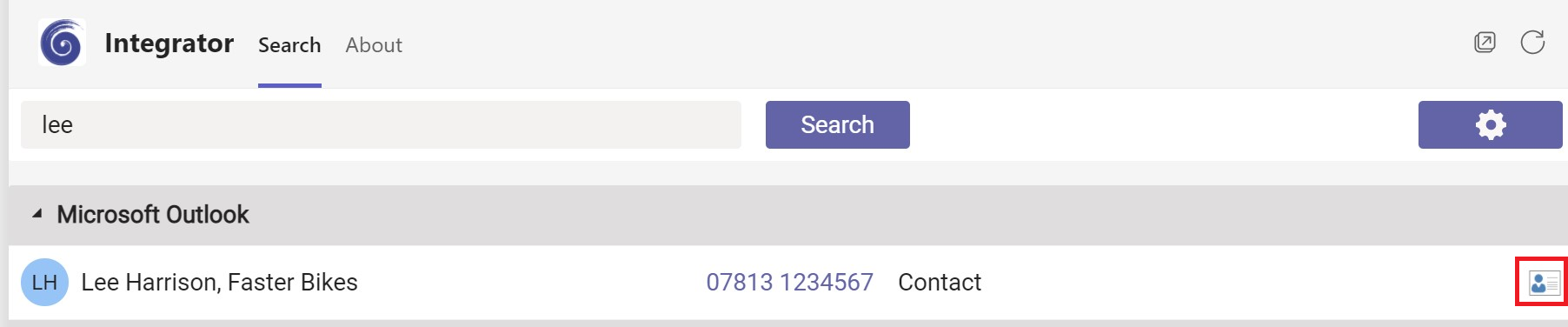
- By clicking on the icon to the right of the displayed contact name, a user can pop the contact record from their CRM.
Making a Call
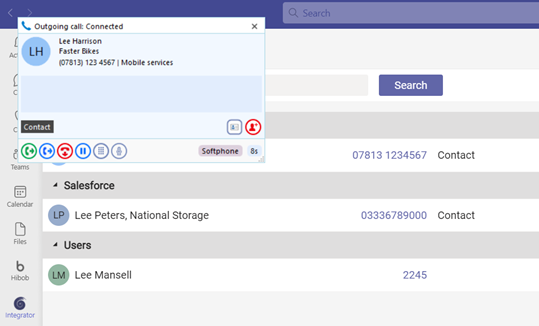
- To make a call, click on the phone number from the search results. This will initiate a call within Blink Voice CRM Integrator, using whichever device is selected as the preferred device. Subsequent call control will be carried out using Blink Voice CRM Integrator.
Access Blink Voice CRM Integrator Settings
- Clicking on the settings icon on the top right of the Teams display, will display the settings page from Blink Voice CRM Integrator.

 Report this page